
How to Create a Database in Notion for Automated Image Processing
Step-by-step instructions for configuring a database in Notion for Image Processing.
For years, I have had a handy little database in Notion I call 'Image Inbox'.
I drop images into that database and use AI automation to help me keep them organised, specifically:
- Adding text to the page that describes what's on the image
- Updating the title of the page based on the description
- Setting the date of the page based on the image file or content
I used to do this with a custom workflow in N8N but we've recently released a Notion integration that can do the same: Image Scribe.
The underlying database in Notion I used for the N8N workflow and what I'm using now, is the same.
So I thought I share that simple set up here, in case you want to use Image Scribe or have your own custom automation.
Here are the setup steps:
- Head over to Notion and Create a Page
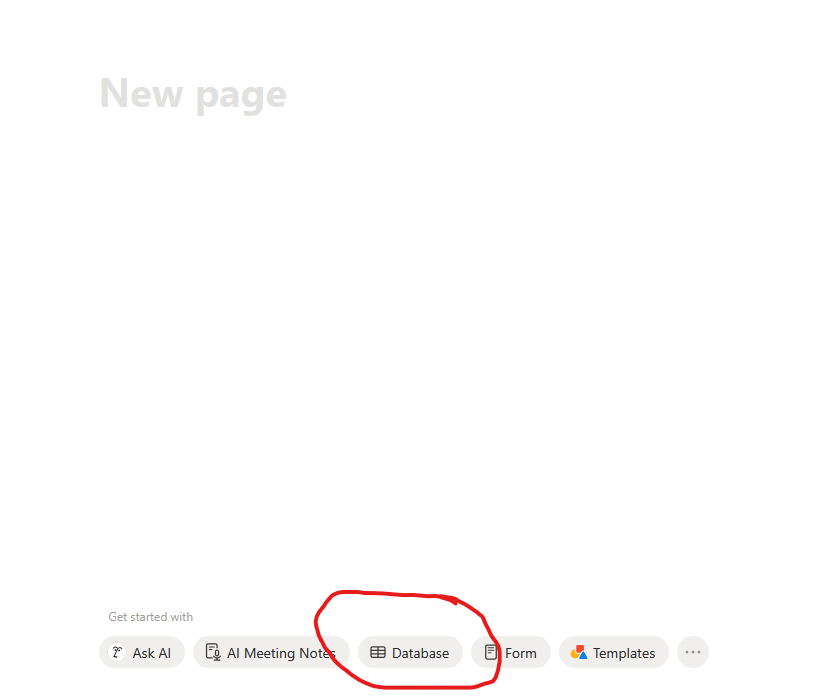
- At the bottom of the page, click the [Database] button
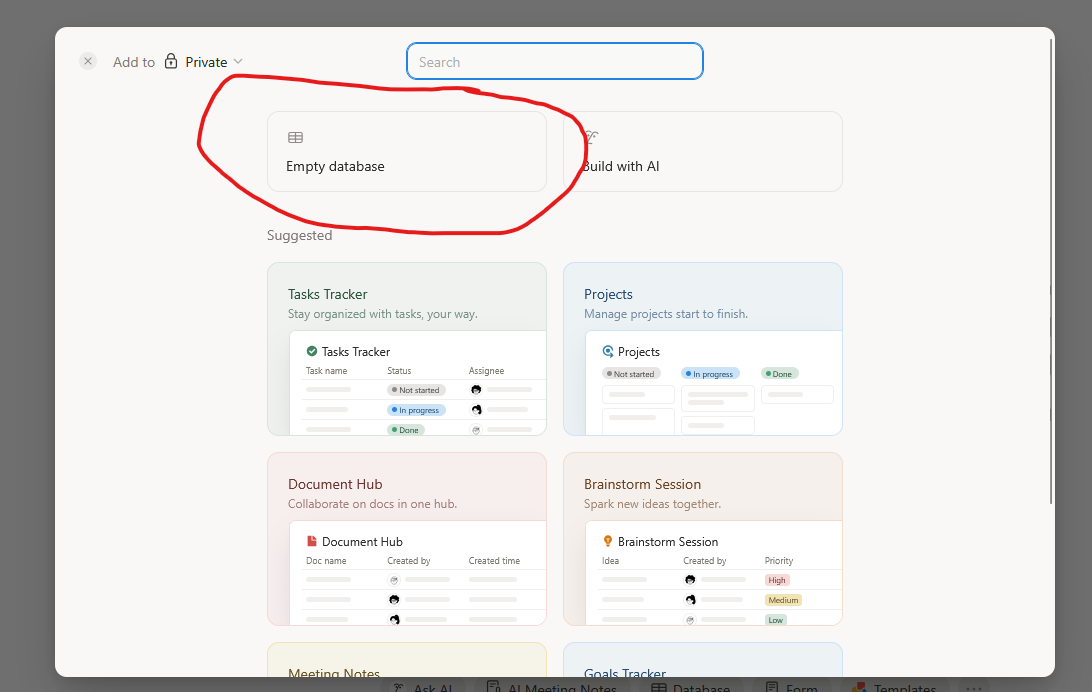
- Then select 'Empty database'
- Give the database a name by clicking in the header row.
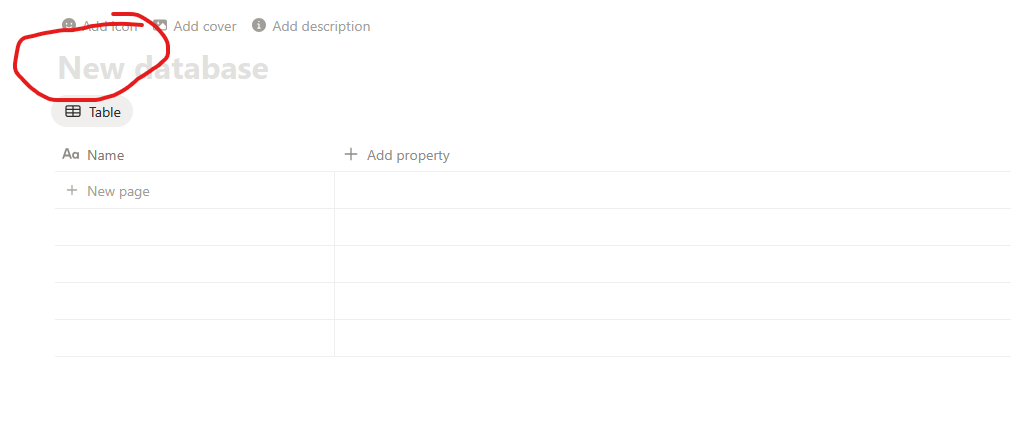
For instance 'Image Inbox':

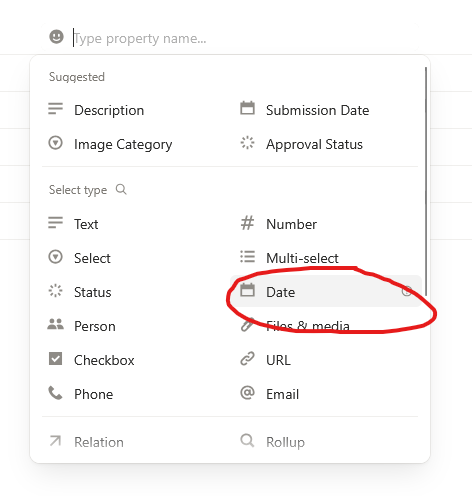
- Click on [+ Add property]
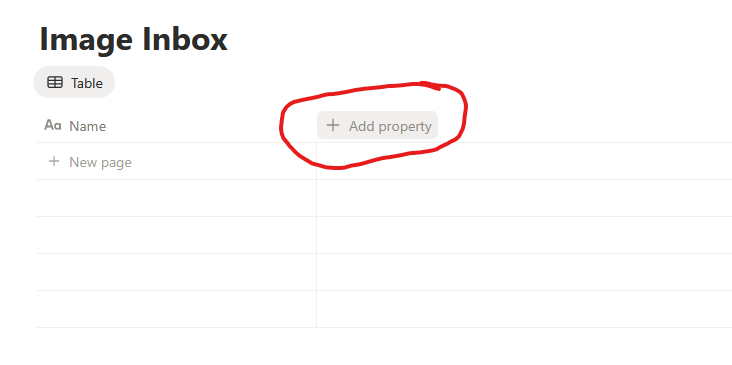
- Select property type 'Date'
And now we are all good to add our images!
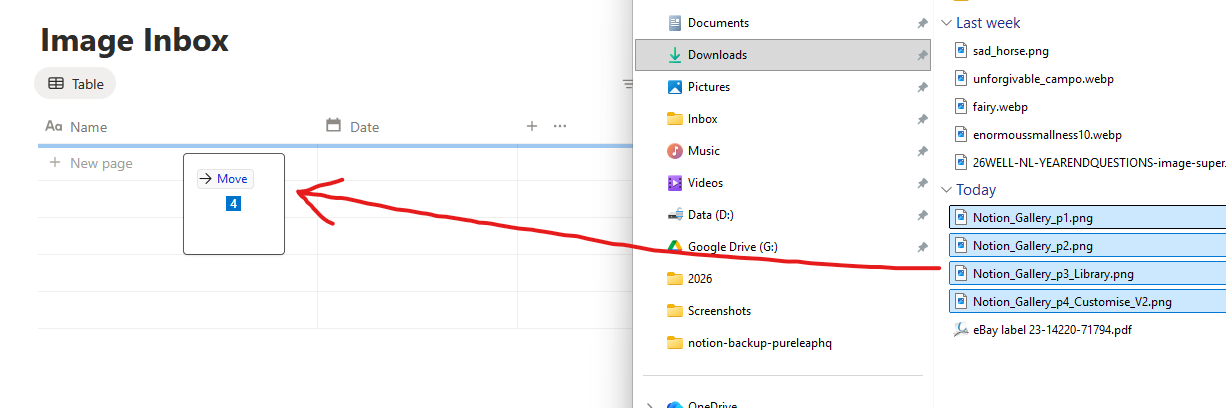
The easiest way is to just drag and drop your images from your desktop onto the database:
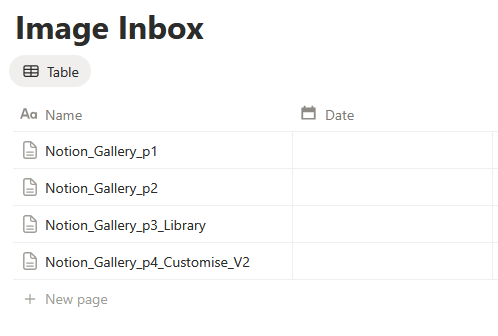
That will add all your images as separate pages:
Now, to go through each of these and update them is a real chore! That's where automation comes into play.
I recommend our extension Image Scribe to get the titles and dates updated easily:
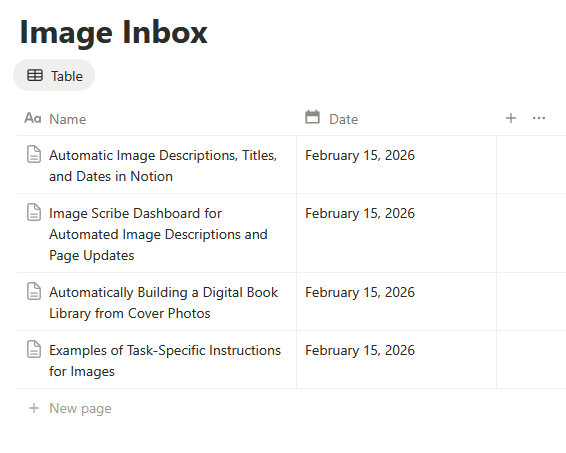
But you can also build your own workflow for this database with tools such as N8N or make.com.
 Follow